# Поля карточки

В данный раздел специально выведена отдельно настройка полей карточки товара в учетной системе, поскольку в большинстве случаев вам больше не придется сюда заходить.

#### ⚙️ Подготовка к импорту товаров <a href="#podgotovka-k-importu-tovarov" id="podgotovka-k-importu-tovarov"></a>

#### Создание полей <a href="#sozdanie-polei" id="sozdanie-polei"></a>

1. Зайдите в Connect и перейдите в раздел `Товары` подраздел `Поля карточки`:
   * в МойСклад [МЕГАМАРКЕТ CONNECT](https://online.moysklad.ru/app/#apps?category_id=6daf20f8-48e7-4a48-990d-1906eb986abd\&id=a7d06e60-7970-4e49-9371-73468d03ec30)
   * в отельную версию [TOPSELLER PRO](https://pro.topseller.ru/)
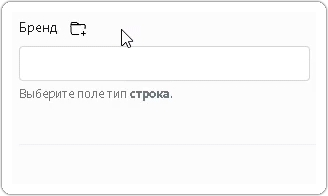
2. Для создания полей, в которых мы будем хранить данные и из которых будем брать данные, нажмите на <img src="https://help.topseller.ru/~gitbook/image?url=https%3A%2F%2Fstatic.connect.topseller.ru%2Fsomething%2Fhelp%2Ffaq_common%2Fstroke%2F%25D0%25BA%25D0%25BE%25D0%25BF%25D0%25BA%25D0%25B0_%25D1%2581%25D0%25BE%25D0%25B7%25D0%25B4%25D0%25B0%25D0%25BD%25D0%25B8%25D1%258F_%25D0%25B4%25D0%25BE%25D0%25BF_%25D0%25BF%25D0%25BE%25D0%25BB%25D1%258F_%25D0%25BE%25D0%25B1%25D0%25B2.png&#x26;width=40&#x26;dpr=4&#x26;quality=100&#x26;sign=18c05171&#x26;sv=2" alt="" data-size="line"> после чего поле автоматически создастся и подтянется для дальнейшего выбора

<figure><img src="https://help.topseller.ru/~gitbook/image?url=https%3A%2F%2Fstatic.connect.topseller.ru%2Fsomething%2Fhelp%2Ffaq_common%2Fstroke%2F%25D0%25B4%25D0%25BE%25D0%25BF_%25D0%25BF%25D0%25BE%25D0%25BB%25D0%25B5_%25D0%25B1%25D1%2580%25D0%25B5%25D0%25BD%25D0%25B4_%25D0%25B3%25D0%25B8%25D1%2584_%25D0%25BE%25D0%25B1%25D0%25B2.gif&#x26;width=768&#x26;dpr=4&#x26;quality=100&#x26;sign=736668eb&#x26;sv=2" alt=""><figcaption></figcaption></figure>

{% hint style="info" %}
🧙‍♂️ **Примечание:** Альтернативный вариант создания полей

* [в МойСклад](https://help.topseller.ru/instruction/connect/prepare-accounting-system/moysklad/fields#alternativnyi-variant-sozdaniya-polei)
  {% endhint %}

3. Создание полей цен

* [в МойСклад](https://help.topseller.ru/instruction/connect/prepare-accounting-system/moysklad/fields#polya-cen)

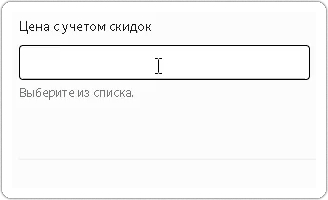
4. Вернитесь в Connect в раздел `Товары` подраздел `Поля карточки` и выберите соответствующие поля для цен

<figure><img src="https://help.topseller.ru/~gitbook/image?url=https%3A%2F%2Fstatic.connect.topseller.ru%2Fsomething%2Fhelp%2Ffaq_ozon%2Fstroke%2F%25D0%25B4%25D0%25BE%25D0%25BF_%25D0%25BF%25D0%25BE%25D0%25BB%25D0%25B5_%25D1%2586%25D0%25B5%25D0%25BD%25D0%25B0_%25D0%25B3%25D0%25B8%25D1%2584_%25D0%25BE%25D0%25B1%25D0%25B2.gif&#x26;width=768&#x26;dpr=4&#x26;quality=100&#x26;sign=8baaf83&#x26;sv=2" alt=""><figcaption></figcaption></figure>

{% hint style="danger" %}
Выбирать соответствие полей нужно из выпадающего *списка-подсказки*.
{% endhint %}

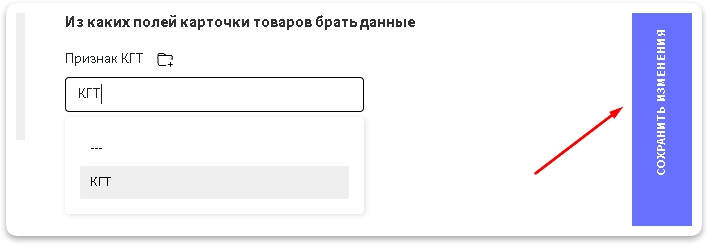
5. После заполнения всех нужных полей нажмите кнопку <img src="https://help.topseller.ru/~gitbook/image?url=https%3A%2F%2Fstatic.connect.topseller.ru%2Fsomething%2Fhelp%2Ffaq_common%2Fstroke%2F%25D0%25BA%25D0%25BD%25D0%25BE%25D0%25BF%25D0%25BA%25D0%25B0_%25D1%2581%25D0%25BE%25D1%2585%25D1%2580%25D0%25B0%25D0%25BD%25D0%25B8%25D1%2582%25D1%258C_%25D1%2582%25D0%25BE%25D0%25BF%25D1%2581%25D0%25B5%25D0%25BB%25D0%25BB%25D0%25B5%25D1%2580_%25D0%25BE%25D0%25B1%25D0%25B2_2.png&#x26;width=193&#x26;dpr=4&#x26;quality=100&#x26;sign=3fa11943&#x26;sv=2" alt="" data-size="line">

{% hint style="danger" %}
Кнопка <img src="https://help.topseller.ru/~gitbook/image?url=https%3A%2F%2Fstatic.connect.topseller.ru%2Fsomething%2Fhelp%2Ffaq_common%2Fstroke%2F%25D0%25BA%25D0%25BD%25D0%25BE%25D0%25BF%25D0%25BA%25D0%25B0_%25D1%2581%25D0%25BE%25D1%2585%25D1%2580%25D0%25B0%25D0%25BD%25D0%25B8%25D1%2582%25D1%258C_%25D1%2582%25D0%25BE%25D0%25BF%25D1%2581%25D0%25B5%25D0%25BB%25D0%25BB%25D0%25B5%25D1%2580_%25D0%25BE%25D0%25B1%25D0%25B2_2.png&#x26;width=193&#x26;dpr=4&#x26;quality=100&#x26;sign=3fa11943&#x26;sv=2" alt="" data-size="line"> может находиться в правой области браузера - особенность интерфейса Connect для МоегоСклада, который технически не позволяет разместить ее внизу формы, как все привыкли. И пользователи её теряли за полосой прокрутки. Поэтому теперь она находится справа - чтобы всегда быть в доступе и на виду.
{% endhint %}

<figure><img src="https://help.topseller.ru/~gitbook/image?url=https%3A%2F%2Fstatic.connect.topseller.ru%2Fsomething%2Fhelp%2Ffaq_sber%2Fstroke%2F%25D0%25BF%25D0%25BE%25D0%25BB%25D1%258F_%25D0%25BA%25D0%25B0%25D1%2580%25D1%2582%25D0%25BE%25D1%2587%25D0%25BA%25D0%25B8_%25D1%2581%25D0%25B1%25D0%25B5%25D1%2580_%25D0%25BE%25D0%25B1%25D0%25B2.png&#x26;width=768&#x26;dpr=4&#x26;quality=100&#x26;sign=1ebe4410&#x26;sv=2" alt=""><figcaption></figcaption></figure>


---

# Agent Instructions: Querying This Documentation

If you need additional information that is not directly available in this page, you can query the documentation dynamically by asking a question.

Perform an HTTP GET request on the current page URL with the `ask` query parameter:

```
GET https://help.topseller.ru/instruction/ts-connect/settings/megamarket/products/card-fields.md?ask=<question>
```

The question should be specific, self-contained, and written in natural language.
The response will contain a direct answer to the question and relevant excerpts and sources from the documentation.

Use this mechanism when the answer is not explicitly present in the current page, you need clarification or additional context, or you want to retrieve related documentation sections.